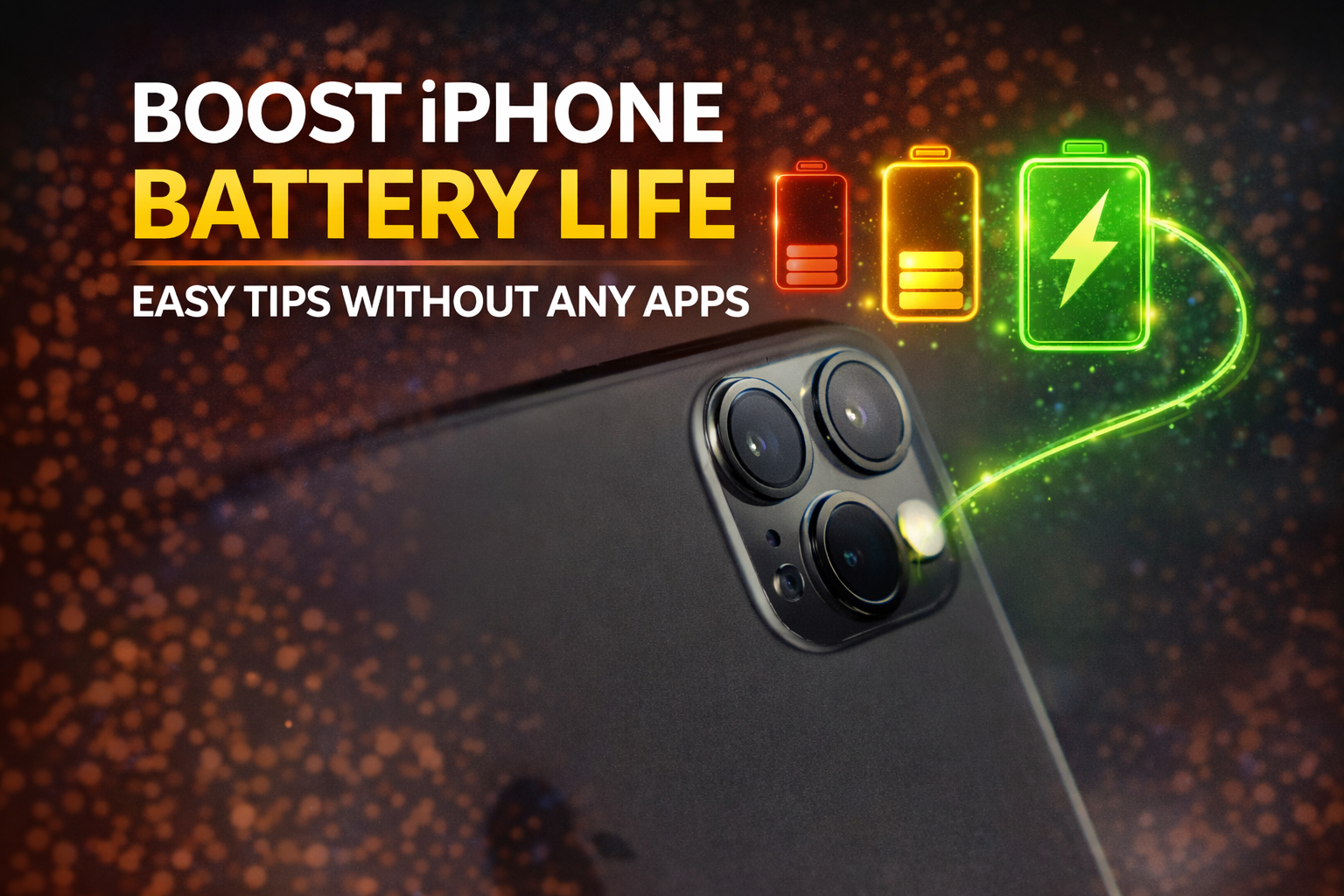
iPhone users love performance, design, and smooth experience — iphone battery draining fast but battery life is one concern almost everyone faces sooner or later. If your iPhone battery drains faster than expected, you’re not alone. The good news is that you don’t need any third-party apps or complicated tools to fix this problem.
This guide explains how to increase iPhone battery life without any apps, using only built-in settings and smart usage habits. These proven methods work for everyday users and help your battery last longer throughout the day while also improving long-term battery health.
Why iPhone Battery Drains Fast
Before fixing the issue, it’s important to understand what causes battery drain. Most of the time, it’s not a faulty battery — it’s how the phone is being used or configured.
Common reasons include:
- Background activity from apps
- Screen brightness set too high
- Location services running constantly
- Push notifications syncing too often
- Unoptimized settings running silently
- iphone battery settings
Once you control these factors, you’ll notice a clear improvement in battery performance.
Turn On Low Power Mode at the Right Time
Low Power Mode is one of the simplest and most effective ways to save battery.
When enabled, it reduces background activity such as downloads, mail fetch, and visual effects.
How to enable it:
- Go to Settings
- Open Battery
- Turn on Low Power Mode
Best practice:
- Use Low Power Mode when battery drops below 40%
- Keep it on during long travel or busy days
This single setting can extend battery life by several hours.
Reduce Screen Brightness and Enable Auto-Brightness
The display is the biggest battery consumer on an iPhone.
What you should do:
- Lower brightness manually
- Enable auto-brightness so your iPhone adjusts based on lighting
Steps:
- Go to Settings → Accessibility → Display & Text Size
- Turn on Auto-Brightness
Also:
- Avoid using maximum brightness indoors
- Darker screen settings reduce power usage significantly
Use Dark Mode Whenever Possible
Dark Mode is not just for looks — it can help save battery, especially on OLED displays.
How to enable Dark Mode:
- Go to Settings → Display & Brightness
- Select Dark
Why it helps:
- Dark pixels use less power
- Reduces eye strain
- Improves battery efficiency during night usage
Check Battery Usage and Identify Power-Hungry Apps
Your iPhone already shows which apps drain the most battery.
Steps:
- Go to Settings → Battery
- Scroll to see battery usage by app
What to look for:
- Apps using high battery in the background
- Social media or video apps running too long
- Unused apps consuming power
Action:
- Limit background access
- Use these apps less frequently
- Remove apps you don’t need
Turn Off Background App Refresh
Background App Refresh allows apps to update even when you’re not using them. While useful, it drains battery quickly.
How to disable it:
- Go to Settings → General → Background App Refresh
- Choose Off or Wi-Fi only
For best battery life:
- Turn it off completely
- Allow only essential apps if needed
Manage Location Services Smartly
Location services are another major cause of battery drain.
Best settings:
- Avoid “Always” location access
- Use “While Using the App” instead
Steps:
- Go to Settings → Privacy & Security → Location Services
- Select each app
- Choose While Using the App or Never
Also disable:
- Location-based alerts
- Location-based suggestions
- Location-based system services
Turn Off Unnecessary Notifications
Every notification lights up your screen, vibrates your phone, and uses power.
What to do:
- Turn off notifications from non-essential apps
- Keep alerts only for important apps like calls or messages
Steps:
- Go to Settings → Notifications
- Select apps one by one
- Disable alerts you don’t need
Fewer notifications = better battery life.
How to Increase iPhone Battery Life Without Any Apps
Disable Push Mail and Use Manual Fetch
Email syncing can quietly drain battery throughout the day.
Recommended settings:
- Use Manual Fetch instead of Push
Steps:
- Go to Settings → Mail → Accounts
- Tap Fetch New Data
- Turn off Push
- Select Manually
This prevents constant background syncing.
Keep iOS Updated, But Avoid Beta Versions
Apple regularly improves battery optimization through updates.
Best practice:
- Use stable iOS versions only
- Avoid beta updates if battery life is a priority
Check for updates:
- Go to Settings → General → Software Update
Updates often include bug fixes that improve power efficiency.
Disable Visual Effects and Motion
Animations and motion effects look nice but consume power.
Steps to reduce motion:
- Go to Settings → Accessibility → Motion
- Turn on Reduce Motion
This improves battery performance and makes the interface feel faster.
Control Bluetooth, AirDrop, and Wi-Fi Usage
Wireless features constantly search for connections.
Tips:
- Turn off Bluetooth when not using accessories
- Disable AirDrop when not needed
- Avoid weak Wi-Fi networks
You can manage these easily from Control Center.
Avoid Extreme Temperatures
Battery performance drops in very hot or cold conditions.
To protect your battery:
- Avoid leaving your iPhone in direct sunlight
- Don’t use it while charging in hot environments
- Remove heavy cases if the phone overheats
Temperature control helps preserve battery health long-term.
Charge Your iPhone the Right Way
Charging habits play a big role in battery lifespan.
Best practices:
- Avoid draining battery to 0% often
- Don’t keep it plugged in overnight regularly
- Try to keep charge between 20% and 80%
Enable Optimized Battery Charging:
- Go to Settings → Battery → Battery Health
- Turn on Optimized Battery Charging
Restart Your iPhone Occasionally
A simple restart can fix background glitches and refresh system processes.
Recommended:
- Restart once every few days
- Especially useful if battery drain feels sudden
It clears background activity and improves performance.
Optimize Battery Health Settings for Long-Term Performance
If you want to truly increase iPhone battery life, you must pay attention to battery health, not just daily usage. Battery health determines how well your iPhone holds a charge over time.
Go to Settings → Battery → Battery Health & Charging and check the Maximum Capacity. While this percentage naturally decreases over time, good habits can slow the decline.
Key tips:
- Keep Optimized Battery Charging turned on
- Avoid charging your iPhone to 100% multiple times a day
- Do not let battery stay at 0% for long periods
A healthier battery means longer screen-on time and more consistent performance.
Close Apps the Right Way (Don’t Overdo It)
Many users believe force-closing apps saves battery, but that’s not always true. iOS is designed to manage apps efficiently in the background.
What actually helps:
- Close apps only if they are frozen or misbehaving
- Avoid force-closing frequently used apps
- Let iOS handle memory and background processes
Constantly reopening apps can use more power than leaving them idle.
Use Wi-Fi Instead of Mobile Data When Possible
Mobile data consumes more battery than Wi-Fi, especially in areas with weak signal.
To improve iPhone battery life:
- Use Wi-Fi whenever available
- Avoid streaming videos on poor cellular networks
- Turn on Airplane Mode in very low-signal areas
Your iPhone works harder when searching for network signals, which drains the battery faster.
Limit Widgets and Live Activities
Widgets and live activities update frequently and run in the background.
What to do:
- Remove widgets you don’t use
- Keep only essential widgets on the home screen
- Avoid live activities unless necessary
This small change can noticeably reduce background battery usage.
Control Automatic Downloads and Updates
Automatic downloads for apps, media, and system updates can silently consume battery.
Recommended settings:
- Disable automatic app downloads
- Update apps manually when charging
Steps:
- Go to Settings → App Store
- Turn off Automatic Downloads
This gives you full control over when your iPhone uses power-intensive processes.
Turn Off Keyboard and System Sounds
System sounds and haptic feedback may seem minor, but they add up throughout the day.
To save battery:
- Disable keyboard clicks
- Reduce haptic feedback if not needed
Steps:
- Go to Settings → Sounds & Haptics
- Turn off unnecessary sounds
This also creates a quieter, distraction-free experience.
How to Increase iPhone Battery Life Without Any Apps
Avoid Using Battery-Draining Wallpapers
Animated or very bright wallpapers can slightly impact battery usage.
Best practice:
- Use simple, dark wallpapers
- Avoid animated or live wallpapers
- Choose minimal designs
Simple visuals reduce screen power consumption and improve efficiency.
Keep Storage Space Free for Better Efficiency
A nearly full storage can slow down system processes and increase power usage.
To fix this:
- Delete unused apps
- Remove old photos or videos
- Use cloud storage wisely
A smoother system uses less energy overall.
Understand When Battery Replacement Is the Best Option
If your battery health drops significantly, no setting can fully fix the issue.
Signs you may need a replacement:
- Battery drains extremely fast
- iPhone shuts down unexpectedly
- Maximum Capacity is very low
Replacing the battery restores performance and significantly improves battery life.
Common Myths About iPhone Battery Life
There are many misconceptions that confuse users.
Myth 1: Closing all apps saves battery
Myth 2: Charging overnight always ruins battery
Myth 3: Battery percentage must hit 0% sometimes
Truth:
Modern iPhones are designed to protect battery health automatically when used correctly.
How Long Should an iPhone Battery Last in a Day?
With proper settings and usage:
- Light users can get a full day easily
- Moderate users should expect consistent all-day performance
- Heavy users benefit most from optimized settings
Your usage pattern matters more than the phone model itself.
Final Conclusion
Knowing how to increase iPhone battery life without any apps is about understanding your device, not installing shortcuts. Smart settings, controlled background activity, and healthy charging habits work together to deliver longer battery life and better performance.
When you apply these techniques consistently, your iPhone becomes more reliable, efficient, and enjoyable to use every single day.
This approach not only improves daily battery performance but also protects your device in the long run — exactly what most users want.