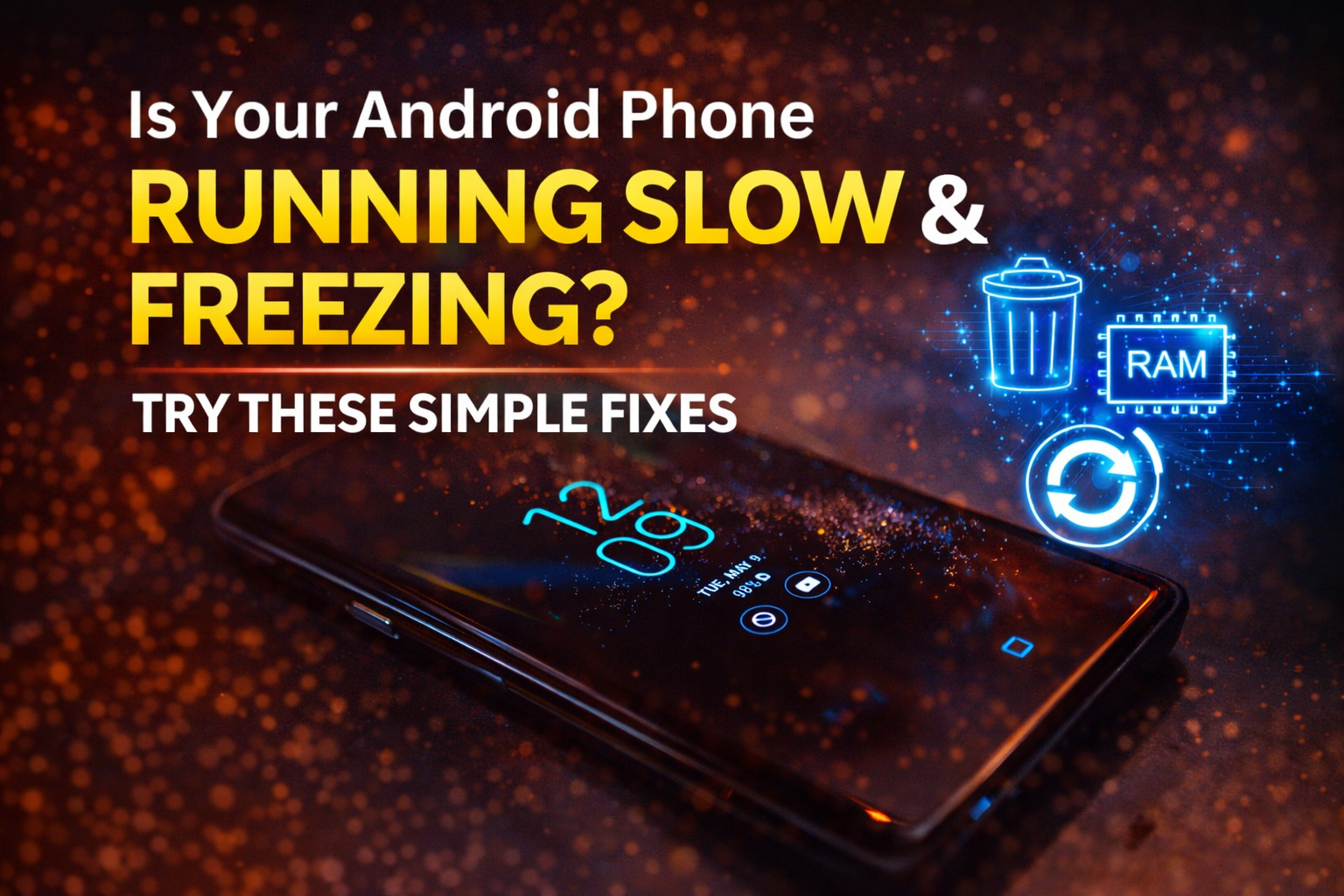
A slow Android phone can be frustrating. Apps take longer to open, scrolling feels laggy, and simple tasks suddenly require patience. Many users assume the only solution is installing booster apps or buying a new phone, but that’s not true. speed up android phone
In reality, you can speed up your Android phone in just 10 seconds using android phone optimization smart built-in settings and simple actions. This guide explains exactly how to do it, why it works, and how to keep your Android device fast over time — without apps, without risk, and without technical skills.
Why Android Phones Become Slow Over Time
Android phones are powerful, but performance can drop gradually due to daily usage. This doesn’t mean your phone is old or broken.
Common reasons include:
- Background apps consuming memory
- Too many animations and visual effects
- Cached data building up over time
- Storage almost full
- System processes running unnecessarily
Once you address these issues, your phone can feel fast again — sometimes instantly.
The 10-Second Trick That Actually Works
If you want to speed up your Android phone in just 10 seconds, this is the fastest and safest method.
Clear Recent Apps the Right Way
- Tap the Recent Apps button
- Swipe away apps you are not using
This instantly frees up RAM and stops background processes that slow your phone.
Why it works:
Unused apps continue running in memory. Clearing them gives your phone immediate breathing space.
Turn On Battery Saver for Instant Performance Boost
Battery Saver isn’t just for battery life — it also improves performance.
How to enable it:
- Open Settings
- Go to Battery
- Turn on Battery Saver
Battery Saver limits background activity, reduces animations, and prioritizes essential system tasks.
Result:
- Faster response
- Less lag
- Smoother scrolling
Reduce Animations for Faster Speed
Animations look good, but they slow down older or mid-range Android phones.
Disable or reduce animations:
- Open Settings
- Go to About Phone
- Tap Build Number seven times (to enable Developer Options)
- Open Developer Options
- Set:
- Window animation scale → 0.5x or Off
- Transition animation scale → 0.5x or Off
- Animator duration scale → 0.5x or Off
This makes your phone feel instantly faster.
Restart Your Android Phone Regularly
A simple restart can solve many performance issues.
Benefits of restarting:
- Clears temporary memory
- Stops stuck background processes
- Refreshes system resources
Even one restart every few days can significantly improve speed.
Clear Cache to Improve Android Performance
Cached data helps apps load faster, but too much cache slows the system.
How to clear cache:
- Open Settings
- Go to Storage
- Tap Cached Data (if available)
- Clear it safely
Clearing cache does not delete personal data.
Free Up Storage Space for Better Speed
When storage is almost full, Android performance drops.
What to remove:
- Unused apps
- Old downloads
- Duplicate photos or videos
Aim to keep at least 20–25% free storage for smooth performance.
Disable Unnecessary Background Apps
Some apps continue running even when you don’t use them.
Steps:
- Open Settings
- Go to Apps
- Select unused apps
- Disable or restrict background usage
This reduces RAM usage and speeds up your phone.
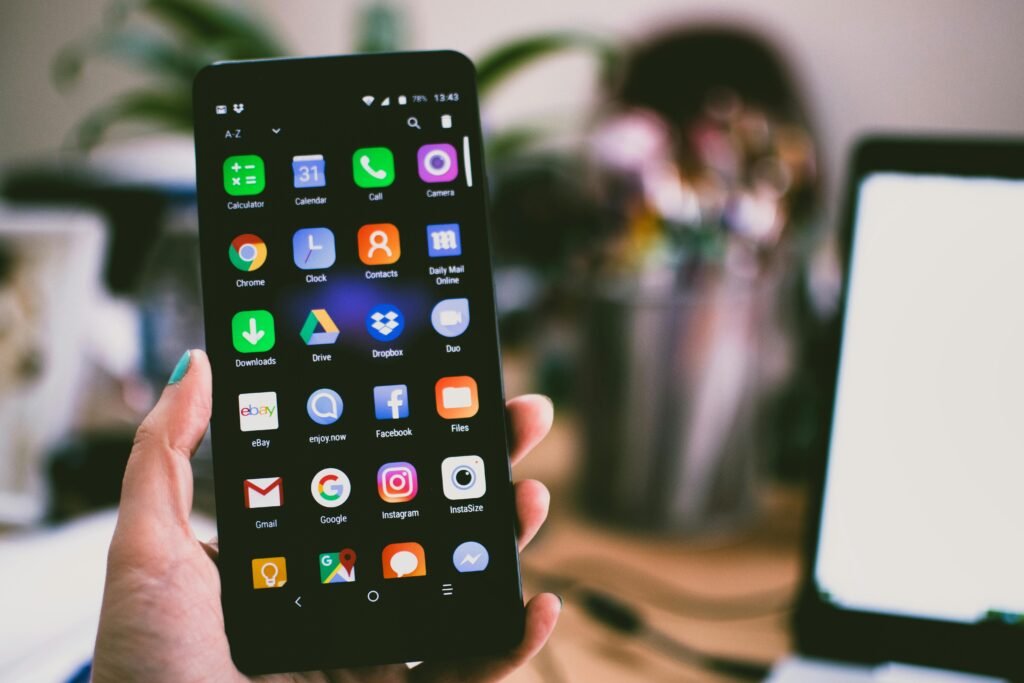
How to Speed Up Your Android Phone in Just 10 Seconds
Update Your Android System
System updates often include performance improvements and bug fixes.
Check for updates:
- Go to Settings
- Open Software Update
- Install stable updates only
Avoid beta versions if performance is your priority.
Use Lite Versions of Apps
Heavy apps consume more memory and processing power.
Examples:
- Facebook Lite instead of Facebook
- Messenger Lite instead of Messenger
Lite apps are faster and more efficient, especially on budget devices.
Turn Off Auto-Sync for Better Speed
Auto-sync constantly refreshes data in the background.
How to control it:
- Go to Settings
- Open Accounts
- Turn off auto-sync for unnecessary accounts
This reduces background activity and improves speed.
Remove Live Wallpapers and Widgets
Live wallpapers and widgets refresh constantly.
Best practice:
- Use static wallpapers
- Keep only essential widgets
This reduces system load and improves responsiveness.
Check for Malware or Suspicious Apps
Malware and poorly coded apps slow down Android phones.
Warning signs:
- Sudden performance drop
- Phone heating up
- Excessive ads
Remove apps installed outside trusted sources.
Factory Reset (Last Option)
If nothing works and your phone is extremely slow, a factory reset can help.
Before resetting:
- Back up your data
- Remove Google account properly
A reset restores original performance but should be used carefully.
How Long Does It Take to Speed Up an Android Phone?
Quick actions like:
- Closing apps
- Restarting
- Enabling battery saver
can improve speed in seconds.
Long-term fixes like:
- Clearing storage
- Reducing animations
- Removing apps
maintain performance over time.
Common Myths About Speeding Up Android Phones
Myth: Booster apps are necessary
Truth: Most booster apps slow phones further
Myth: New phone is the only solution
Truth: Settings and habits matter more
Myth: Clearing RAM constantly helps
Truth: Android manages RAM automatically
Use Built-In Storage Cleaner for Instant Performance Boost
Most Android phones come with a built-in storage cleaner that many users ignore. This tool helps identify junk files, temporary data, and unused files that slow down your phone.
How to use it:
- Open Settings
- Go to Storage
- Tap Clean or Free up space
This removes unnecessary data safely and improves overall phone responsiveness.
Limit Startup Apps to Reduce Lag
Some apps automatically start when you turn on your Android phone. These apps consume memory from the beginning and slow down performance.
What to do:
- Go to Settings
- Open Apps or Startup Manager
- Disable auto-start for non-essential apps
Fewer startup apps mean faster boot time and smoother daily usage.
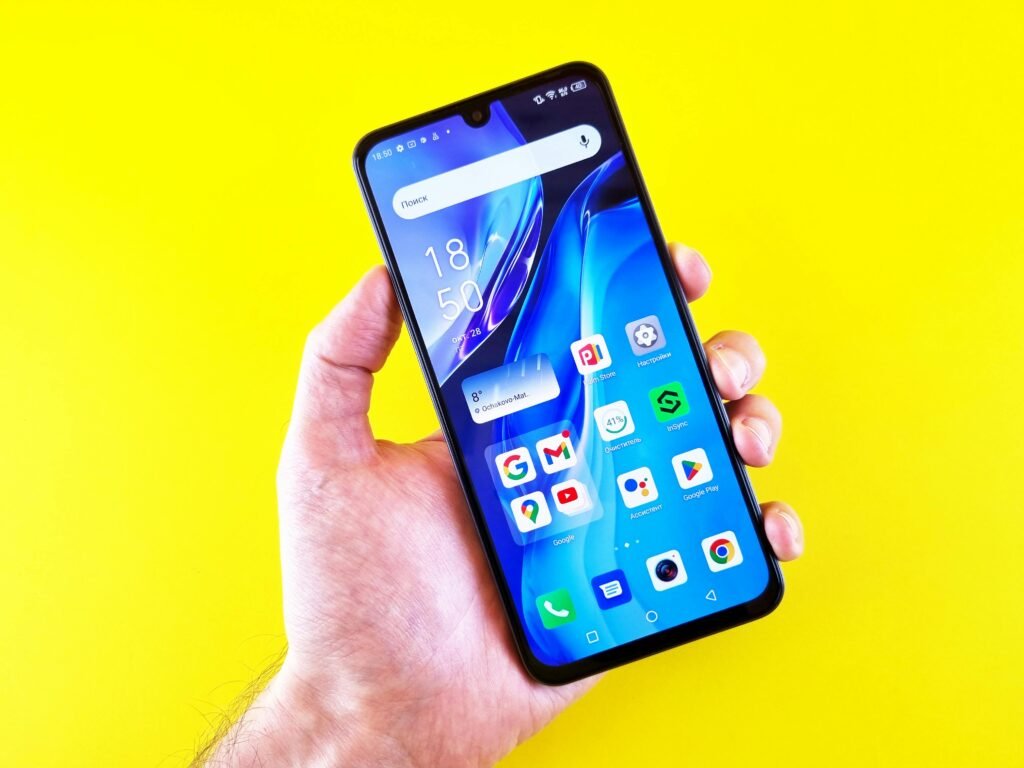
Turn Off Unused Sensors and Features
Your Android phone includes multiple sensors and features that are rarely used but still consume system resources.
Consider disabling:
- Nearby device scanning
- Printing services
- NFC (if unused)
- Always-on listening features
These small changes reduce background load and help speed up your Android phone.
Keep Google Services Optimized
Google services are essential, but excessive syncing and background activity can slow down your phone.
Tips:
- Limit Google account sync to important services
- Disable location history if not needed
- Review Google app permissions regularly
Optimized Google services improve both speed and battery efficiency.
Use Performance Mode If Available
Some Android phones offer a performance or gaming mode.
How it helps:
- Prioritizes CPU and RAM
- Reduces background activity
- Improves responsiveness
Enable performance mode when you need faster speed for multitasking or gaming.
Avoid Task Killer and Booster Apps
Many users install task killer or booster apps thinking they improve speed. In reality, they often do the opposite.
Why to avoid them:
- They constantly run in the background
- They consume RAM and CPU
- Android already manages memory efficiently
Removing such apps can instantly improve performance.
Manage App Permissions for Better Efficiency
Apps with unnecessary permissions can misuse system resources.
What to check:
- Background location access
- Camera and microphone usage
- Continuous data access
Go to Settings → Privacy → Permission Manager and restrict permissions that apps do not need.
Use a Lightweight Launcher
If your phone supports it, using a simple launcher can improve speed.
Benefits:
- Faster home screen loading
- Fewer animations
- Reduced memory usage
Avoid heavily customized launchers with excessive effects.
Keep Your Phone Cool for Best Performance
Heat directly affects performance. When your phone overheats, Android automatically reduces speed to protect hardware.
To prevent overheating:
- Avoid heavy use while charging
- Remove thick cases during long usage
- Do not expose the phone to direct sunlight
A cooler phone runs faster and smoother.
Long-Term Habits That Keep Android Fast
Speed is not just about quick fixes. Daily habits matter.
Good habits:
- Install only trusted apps
- Update apps regularly
- Restart the phone weekly
- Keep storage clean
These habits help maintain consistent performance over time.
Adjust App Update and Download Settings for Better Speed
Automatic updates can slow down your Android phone, especially when multiple apps update in the background.
What to change:
- Open Google Play Store
- Go to Settings
- Tap Network Preferences
- Set Auto-update apps to “Don’t auto-update”
This prevents sudden background activity and keeps your phone responsive when you need it most.
Reduce Background Data Usage
Many apps keep using mobile data even when you are not actively using them. This constant data activity can slow performance.
Steps to control it:
- Go to Settings
- Open Network & Internet
- Tap Data Usage
- Select apps that don’t need background data
- Disable background data access
Reducing background data helps your phone work faster and smoother.
Disable Smart Features You Don’t Use
Android phones come with smart features that sound useful but are rarely needed by most users.
Features to review:
- Smart suggestions
- Adaptive connectivity (if unstable)
- Nearby sharing
- Digital wellbeing tracking (optional)
Turning off unused smart features reduces system load and improves speed.
Optimize Google Assistant Settings
Google Assistant constantly listens for commands, which can slightly impact performance.
To optimize it:
- Open Google app
- Go to Settings
- Select Google Assistant
- Turn off “Hey Google” if not used often
This small change can reduce background processing and improve overall speed.
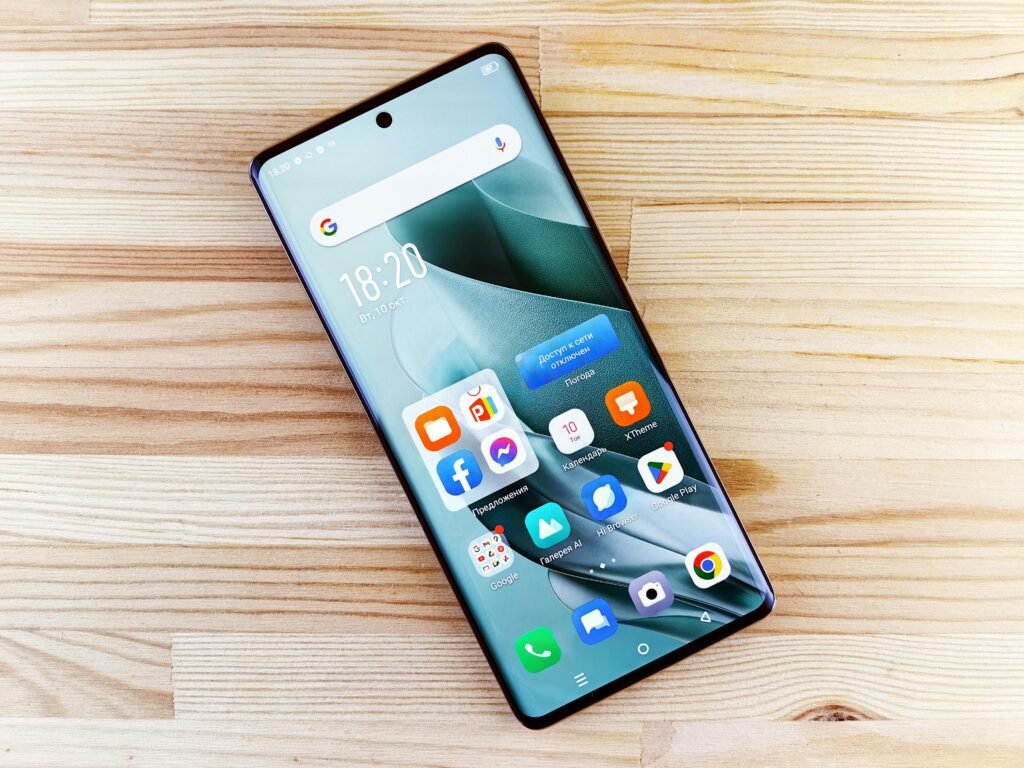
Keep Home Screen Simple for Faster Performance
A cluttered home screen slows down rendering and animations.
Best practices:
- Use one or two home screen pages
- Remove unnecessary icons
- Avoid heavy widgets
A clean home screen loads faster and feels smoother.
Clear App Cache Individually for Heavy Apps
Some apps store large amounts of cache over time.
Focus on:
- Social media apps
- Video streaming apps
- Browsers
Steps:
- Go to Settings → Apps
- Select the app
- Tap Storage
- Clear cache
This helps reduce lag and improves app launch speed.
Use Safe Mode to Identify Performance Issues
Safe Mode allows your phone to run without third-party apps.
Why it helps:
- Identifies apps causing lag
- Confirms if slowdown is software-related
If your phone runs fast in Safe Mode, uninstall recently added apps after restarting normally.
Manage System Sounds and Vibrations
System sounds and strong vibrations use processing power repeatedly.
What to do:
- Reduce vibration intensity
- Disable unnecessary system sounds
This improves responsiveness, especially on budget Android phones.
Avoid Constant Multitasking
Switching rapidly between many apps increases memory pressure.
Better habit:
- Finish one task before opening another
- Close heavy apps after use
Controlled multitasking keeps your Android phone fast.
Understand Hardware Limitations
Not all Android phones are designed for heavy usage.
If your phone has:
- Low RAM
- Older processor
Then lighter apps, fewer animations, and cleaner storage will make a noticeable difference.
When Slowness Is Normal
Sometimes slower speed is expected.
Examples:
- During system updates
- When storage is nearly full
- While installing apps
In such cases, performance usually improves automatically after tasks finish.
Final Absolute Conclusion
Knowing how to speed up your Android phone in just 10 seconds gives you instant relief from lag, but maintaining speed requires smart settings and consistent habits. Android already provides powerful tools to manage performance — you just need to use them correctly.
By controlling background activity, simplifying your interface, optimizing system features, managing storage, and avoiding unnecessary apps, your Android phone can stay fast, smooth, and reliable for everyday use.
No downloads. No risky shortcuts. Just smart optimization that works.